
18 Easy Ways to Extend Your Wi-Fi Network

Slow Wi-Fi, endless buffering, and dropped video calls during important meetings—sound familiar? You’re not alone. Millions of households struggle with weak Wi-Fi signals that leave certain rooms practically disconnected from the digital world.
You can improve your Wi-Fi signal by optimizing your router’s placement and settings, managing connected devices, and, for larger homes, using hardware like a Wi-Fi extender or a mesh network. This comprehensive guide provides step-by-step instructions to diagnose connection issues and implement solutions that deliver reliable, fast Wi-Fi throughout your entire home.
Quick Answer: How to Extend Your Wi-Fi Network
- Move your router to a central, elevated, open location first — this fixes most dead zone problems without spending a dime
- Use 5GHz for fast devices nearby; 2.4GHz for smart home devices and far-away rooms
- For a single problem area, a Wi-Fi extender is the easiest fix
- For whole-home dead zones in larger homes, a mesh network (Eero, Orbi, Google Nest Wifi Pro) is the most reliable solution
- If speeds are slow even on a wired connection, your internet plan, not your router, is the bottleneck
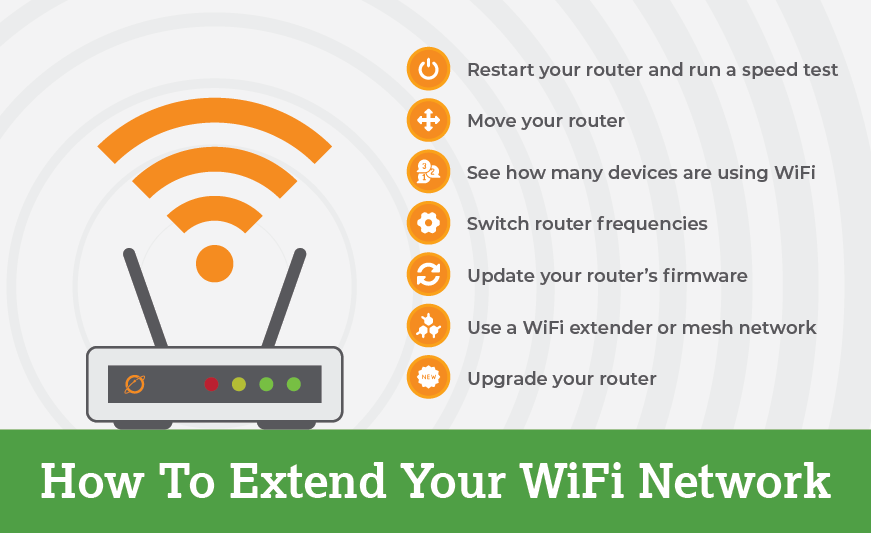
18 Simple Steps to Extend Your Wi-Fi Network
Follow these actionable steps to systematically improve your Wi-Fi coverage and eliminate dead zones throughout your home.
Step 1. Test Your Speed
Start by checking your baseline speed to understand what you’re working with. Connect a computer directly to your router using an Ethernet cable and run a speed test at TestMySpeed.com. This tells you the actual speed you’re receiving from your provider, not what’s advertised.
Next, perform wireless speed tests in various rooms throughout your home. Walk around with your laptop or smartphone and test speeds in different locations, noting which areas have significantly slower performance. This creates a map of your current coverage and identifies specific dead zones that need attention.
Step 2. Restart Your Router
It’s a classic troubleshooting step for good reason. Power cycling your router clears temporary glitches, refreshes network connections, and can provide an immediate performance boost. Unplug your router for 30 seconds, then plug it back in and wait for it to fully restart.
Many routers benefit from regular restarts—consider scheduling a weekly reboot or investing in a smart plug that can automate this process. If restarting consistently improves performance, it might indicate your router is overworked or aging.
Step 3. Find the Right Spot
Router placement dramatically affects signal strength and coverage. Move your router to a central, elevated location in your home—ideally on a shelf or mounted on a wall rather than sitting on the floor. Keep it out in the open, away from thick walls, large metal objects like refrigerators, and other electronics that cause interference.
Avoid placing your router in closets, cabinets, or behind furniture. The more obstacles between your router and devices, the weaker your signal becomes. If your current location is dictated by where your internet service enters your home, consider asking your provider about relocating the connection point.
Step 4. Switch Wi-Fi Bands
Most modern routers broadcast on two frequency bands: 2.4GHz and 5GHz. Each serves different purposes and understanding when to use each can significantly improve your experience. Use the 5GHz band for high-bandwidth activities like 4K streaming and gaming on devices close to your router—it offers faster speeds but shorter range.
The 5GHz band delivers faster speeds than 2.4GHz but is more susceptible to signal loss through walls and floors. On modern Wi-Fi 6 routers, real-world range varies significantly based on home construction and router hardware — devices close to the router will see the biggest speed benefit, while 2.4GHz remains the better choice for distant or obstacle-heavy locations.
Step 5. Update Router Firmware
Router manufacturers regularly release firmware updates that include security patches, performance improvements, and new features. Check your router’s mobile app or web interface for available updates and install them promptly. Outdated firmware can leave your network vulnerable and prevent you from getting optimal performance.
Set up automatic updates if your router supports this feature. Many newer models can download and install updates during off-peak hours, ensuring you always have the latest improvements without interrupting your daily internet use.
Step 6. Secure Your Network & Kick Off Intruders
A slow network might mean unauthorized users are consuming your bandwidth. Set a strong, unique password using WPA3 security (or WPA2 if WPA3 isn’t available). Your password should be at least 12 characters long and include a mix of letters, numbers, and special characters.
Log into your router’s admin panel to review all connected devices. Remove any devices you don’t recognize and consider setting up a guest network for visitors rather than sharing your main network password.
Step 7. Change the Wi-Fi Channel
In apartment buildings and dense neighborhoods, multiple routers compete for the same channels, causing interference and slower speeds. Use a Wi-Fi analyzer app like WiFi Explorer (Mac) or WiFi Analyzer (Android) to identify the least crowded channel in your area.
For 2.4GHz networks, stick to channels 1, 6, or 11—these are the only non-overlapping options. For 5GHz networks, you have more choices, but avoid DFS (Dynamic Frequency Selection) channels if you want maximum stability.
Step 8. Enable QoS (Quality of Service)
Quality of Service features let you prioritize certain devices or activities over others. Configure QoS to give your work laptop, gaming console, or streaming devices priority access to bandwidth, ensuring smooth performance for critical activities even when multiple devices are connected.
Most modern routers offer easy QoS setup through their mobile apps, allowing you to drag and drop devices into priority categories like “Gaming,” “Streaming,” or “Work from Home.”
Step 9. Upgrade to Wi-Fi 6 or Wi-Fi 6E
If your router is more than five years old, upgrading to Wi-Fi 6, Wi-Fi 6E, or Wi-Fi 7 can provide substantial performance improvements. Wi-Fi 6 and 6E offer faster speeds, better performance in crowded environments, and improved efficiency for multi-device households. Wi-Fi 7 (802.11be) goes further, introducing Multi-Link Operation (MLO), the ability to transmit across multiple bands simultaneously, for significantly lower latency and more consistent speeds. If you’re buying a new router today, Wi-Fi 7 hardware is commercially available and worth the investment for future-proofing, particularly in homes with many high-bandwidth devices.
Step 10. Add a Mesh Network
For homes more than 2,000 square feet or multi-story layouts, a mesh network system provides the most comprehensive solution. Mesh networks use multiple nodes placed throughout your space to create seamless, strong Wi-Fi coverage in every corner, eliminating dead zones entirely.
Unlike traditional extenders, mesh systems create a single network name that devices automatically connect to, switching between nodes as you move through your home. Popular mesh systems include Eero, Google Wifi, and Orbi.
EarthLink’s fiber and 5G home internet plans are built to support whole-home mesh setups. So, if you’re already an EarthLink customer experiencing dead zones, a mesh upgrade is likely all you need to unlock the full potential of your connection.
Step 11. Use a Wi-Fi Extender
If a full mesh upgrade isn’t in your budget, a Wi-Fi extender offers a cost-effective solution for specific problem areas. Extenders capture your existing Wi-Fi signal and rebroadcast it to extend coverage to basements, garages, or distant bedrooms.
Place your extender halfway between your router and the dead zone for optimal performance. Modern extenders often include Ethernet ports, allowing you to create a wired connection point in previously unreachable areas.
Step 12. Optimize Your Router Settings
Access your router’s configuration page and fine-tune settings for maximum performance. Enable features like beamforming, which focuses the Wi-Fi signal toward your devices rather than broadcasting equally in all directions. Adjust channel width settings—use 80MHz for 5GHz networks when possible, but drop to 40MHz if you experience stability issues.
Disable legacy support for very old Wi-Fi standards (802.11b/g) if all your devices support newer standards. This prevents older protocols from slowing down your entire network.
Step 13. Utilize Ethernet Connections
For devices that demand consistent, high-speed connections—gaming consoles, desktop computers, smart TVs, and work laptops—consider using wired Ethernet instead of Wi-Fi. Ethernet connections eliminate interference and provide the most stable, fastest possible speeds.
Run Ethernet cables to key locations or use powerline adapters to create wired connections through your home’s electrical system. This approach reduces the load on your Wi-Fi network while ensuring critical devices get optimal performance.
Step 14. Upgrade Router Antennas
If your router has detachable antennas, upgrading to high-gain antennas can improve signal strength and coverage. High-gain antennas focus the radio signal more effectively, extending range and providing stronger connections, especially in larger homes.
Position antennas vertically for horizontal coverage (same floor) or at a 45-degree angle for multi-story homes. Some routers benefit from directional antennas pointed toward problem areas.
Step 15. Regular Network Maintenance
Perform routine maintenance to keep your network running smoothly. Restart your router monthly, clean dust from vents and antennas, and check for firmware updates quarterly. Monitor your network’s performance and document any recurring issues.
Keep a log of devices connected to your network and remove unused or old devices that might be consuming bandwidth unnecessarily.
Step 16. Consider Powerline Adapters or MoCA
For areas where Wi-Fi signals struggle to reach, powerline adapters offer an alternative solution. These devices use your home’s electrical wiring to transmit internet signals, creating a stable connection point in distant rooms.
MoCA (Multimedia over Coax Alliance) adapters work similarly but use existing coaxial cable wiring. Both options provide more reliable connections than Wi-Fi extenders in certain situations, particularly for stationary devices.
Step 17. Monitor Network Traffic
Use your router’s built-in monitoring tools or third-party applications to track which devices and applications consume the most bandwidth. Identify bandwidth-heavy activities during peak usage times and adjust QoS settings accordingly.
Many routers offer usage reports that show daily and monthly data consumption by device, helping you understand your network’s demands and optimize accordingly.
Step 18. Consider Professional Installation
If you’ve tried multiple solutions without success, or if you have a complex home layout with unique challenges, professional installation might be worth the investment. Network specialists can perform site surveys, recommend customized solutions, and optimize your setup for maximum performance.
Professional installers can also handle complex wiring, configure enterprise-grade equipment, and provide ongoing support for sophisticated network setups.
Understanding Your Wi-Fi: How It Works and What Slows It Down
Wi-Fi works by broadcasting radio signals from your router to create a wireless network. Your router acts like a radio station, transmitting data on specific frequency bands that your devices can receive and respond to.
Modern routers typically broadcast on two main frequency bands: 2.4GHz and 5GHz. Think of these as different highways for your data—each with unique characteristics that affect speed and range.
Several factors can weaken or interfere with your Wi-Fi signal:
- Physical obstructions: Walls, floors, and furniture block or absorb radio waves
- Distance from the router: Signal strength decreases as you move farther away
- Electronic interference: Microwaves, cordless phones, and baby monitors operate on similar frequencies
- Network congestion: Too many devices competing for bandwidth
- Neighboring Wi-Fi networks: Other routers in your area can cause interference
Understanding these limitations helps you make informed decisions about router placement, device management, and when additional hardware might be necessary.
H2 How Far Does the Average Wi-Fi Network Reach?
A 2.4GHz Wi-Fi signal typically reaches up to 150 feet indoors, while a 5GHz signal reaches approximately 50 feet. However, these ranges assume ideal conditions with minimal obstacles.
The trade-off between these frequencies is significant: 2.4GHz offers wider coverage but slower maximum speeds, while 5GHz provides faster speeds over shorter distances. The newer 6GHz band, available on Wi-Fi 6E and Wi-Fi 7 devices, operates exclusively on modern equipment and eliminates interference from legacy technology, but has an even shorter range and lower wall-penetration capability.
| Frequency Band | Indoor Range | Speed | Wall Penetration | Best For |
| 2.4GHz | Up to 150 feet | 50–150 Mbps (Wi-Fi 5 and older) | Excellent | IoT devices, long-range connections |
| 5GHz | Up to 50 feet | 200 Mbps–1 Gbps or faster (Wi-Fi 6) | Moderate | Streaming, gaming, video calls |
| 6GHz | Up to 115 feet | 1 Gbps or faster; Wi-Fi 6E & Wi-Fi 7 only | Poor | High-performance devices nearby |
Drywall has minimal impact on Wi-Fi signal strength, while concrete walls, especially reinforced concrete, are among the most significant barriers, causing substantial signal loss that worsens at higher frequencies like 5GHz and 6GHz.
When Basic Fixes Aren’t Enough: Hardware Solutions for Dead Zones
Sometimes optimizing your existing router simply isn’t sufficient to cover every corner of your home. Larger houses, multi-story layouts, or homes with challenging construction materials may require additional hardware to achieve reliable whole-home coverage.
This is where Wi-Fi extenders, mesh networks, and alternative solutions like powerline adapters come into play. For larger homes, services like EarthLink often recommend specific hardware solutions to ensure customers get the most out of their high-speed plans, particularly when dealing with fiber internet connections that can deliver gigabit speeds.
Wi-Fi Extender vs. Booster vs. Repeater: What’s the Real Difference?
These terms are often used interchangeably, but they represent different technologies:
- Wi-Fi Booster: A general marketing term for any device that improves Wi-Fi signal strength
- Wi-Fi Repeater: Older technology that captures and rebroadcasts signals on the same channel, often cutting bandwidth in half
- Wi-Fi Extender: Modern devices that capture and rebroadcast signals on different channels to preserve speed and reduce interference
| Device Type | Technology | Bandwidth Impact | Best Use Case |
| Booster | General term | Varies | Any signal improvement |
| Repeater | Same-channel rebroadcast | 50% reduction | Legacy/budget solutions |
| Extender | Multi-channel operation | Minimal impact | Targeted coverage areas |
How Does a Wi-Fi Extender Work?
A Wi-Fi extender captures the wireless signal from your main router, amplifies it, and rebroadcasts it to cover areas with weak or no signal. The key to success is proper placement—position your extender halfway between your router and the dead zone for optimal performance.
Modern extenders often create a separate network name (SSID) or seamlessly extend your existing network. Some models include Ethernet ports, effectively creating a wired access point in previously unreachable areas.
How Does a Wi-Fi Booster Work?
“Wi-Fi booster” serves as an umbrella term for devices that improve Wi-Fi signal strength, including both repeaters and extenders. These devices work by taking your existing router’s signal and rebroadcasting it to cover a larger area, helping eliminate dead zones and improve connectivity in distant rooms.
The effectiveness of any booster depends on the underlying technology—modern extenders typically perform better than basic repeaters.
How Does a Wi-Fi Repeater Work?
A Wi-Fi repeater captures your router’s wireless signal and rebroadcasts it using the same frequency band and channel. This older technology creates a potential bottleneck because the device must receive and transmit data simultaneously on the same channel, which can reduce available bandwidth by up to 50%.
While repeaters are generally less expensive than modern extenders, the performance trade-offs make them less suitable for bandwidth-intensive activities like streaming or gaming.
H2 Mesh Wi-Fi: The Ultimate Solution for Whole-Home Coverage
Mesh Wi-Fi systems represent the most comprehensive solution for eliminating dead zones and ensuring consistent coverage throughout large or complex homes. Instead of relying on a single router, mesh systems use multiple nodes working together to create one seamless network.
Key advantages of mesh systems include:
- Seamless roaming: Devices automatically connect to the strongest signal as you move through your home
- Intelligent traffic routing: The system optimizes data paths for best performance
- Easy expansion: Add additional nodes to extend coverage as needed
- Centralized management: Control your entire network through a single app
Mesh networks work best for homes over 2,000 square feet, multi-story houses, or properties with complex layouts that create natural dead zones.
H2 Powerline Adapters and MoCA: Using Your Home’s Wiring
When wireless solutions aren’t practical, powerline adapters and MoCA (Multimedia over Coax Alliance) adapters offer alternatives that use existing home wiring to transmit internet signals.
Powerline adapters plug into electrical outlets and use your home’s electrical wiring to create network connections. They’re ideal for connecting stationary devices like desktop computers, gaming consoles, or smart TVs in rooms where Wi-Fi is weak.
MoCA adapters work similarly but use coaxial cable wiring instead of electrical lines. If your home has coax wiring from cable TV installation, MoCA often provides faster and more reliable connections than powerline adapters.
When It’s Time to Upgrade Your Internet, Not Just Extend Your Wi-Fi
If your Ethernet speed test from Step 1 revealed slow speeds even when directly connected to your router, the issue likely stems from your internet plan rather than your Wi-Fi setup. No amount of network optimization can overcome inadequate bandwidth from your internet service provider.
Signs you need an internet upgrade include: a growing number of smart devices in your home, multiple family members streaming or gaming simultaneously, frequent buffering despite good Wi-Fi signal strength, or an internet plan that’s several years old and may not meet current household demands
Modern homes with smart TVs, security systems, work-from-home setups, and multiple streaming devices often require 100 Mbps or higher to function smoothly. EarthLink’s high-speed fiber and 5G solutions provide the robust foundation necessary for a truly connected smart home, delivering consistent speeds that support all your devices simultaneously.
If you’ve optimized your router placement, upgraded your hardware, and still can’t get reliable whole-home coverage, the foundation may be the issue. EarthLink Fiber and 5G Home Internet deliver the consistent, high-speed connection that gives your mesh system or extender setup the bandwidth it needs to perform. Check availability in your area or call 1-866-383-3080 to talk through the right plan for your home.
Frequently Asked Questions
How do I know if I need a Wi-Fi extender?
You need a Wi-Fi extender if specific rooms have consistently weak or no signal after you’ve already optimized your router’s placement and settings. Common signs include slow speeds in certain rooms, frequent disconnections, or dropped video calls in areas farther from your router.
What is the difference between a Wi-Fi extender and a Wi-Fi repeater?
Wi-Fi extenders and repeaters both expand wireless coverage, but extenders use modern multi-channel technology that preserves most of your original speed. Repeaters use older single-channel technology that rebroadcasts on the same frequency, which can cut available bandwidth by up to 50%.
Are Wi-Fi extenders and boosters the same thing?
Wi-Fi extenders and boosters are not the same, though the terms are often used interchangeably. “Booster” is a general marketing term covering both extenders and repeaters. Extenders use newer technology that minimizes speed loss; repeaters use older technology that can significantly reduce bandwidth.
Is it easy to install a Wi-Fi booster or extender?
Most Wi-Fi extenders and boosters are straightforward to install, typically taking 10–15 minutes. Many models offer app-based setup with step-by-step guidance, while others are simple plug-and-play devices that require no technical knowledge.
How can I boost Wi-Fi signal through concrete walls?
Concrete walls are one of the most difficult obstacles for Wi-Fi signals to penetrate, but several solutions can help. The most effective options are placing mesh network nodes on both sides of the concrete barrier, using powerline adapters that route the signal through your home’s electrical wiring, or positioning access points in open areas near the problem zone rather than relying on signal penetration through the wall itself.
Which Wi-Fi frequency band provides better coverage?
The 2.4GHz band provides better whole-home coverage because it travels farther and penetrates walls more effectively than 5GHz. The 5GHz band delivers faster speeds but degrades more quickly through walls and obstacles. Use 2.4GHz for devices farther from your router and 5GHz for bandwidth-heavy devices close to it.
Is it worth upgrading to a Wi-Fi 7 router?
Wi-Fi 7 is worth upgrading to if you have a high-speed internet plan (500 Mbps or higher), many connected devices, or demanding use cases like 4K streaming, cloud gaming, or a home office. Wi-Fi 7 (802.11be) introduces Multi-Link Operation (MLO), which bonds multiple frequency bands into a single connection for lower latency and more consistent speeds throughout your home. For households on slower plans or with fewer devices, a Wi-Fi 6 router remains capable and more cost-effective. If you’re buying a new router in 2025 or later, Wi-Fi 7 hardware is commercially available and worth considering to future-proof your network.
How can I extend Wi-Fi and eliminate dead zones in my house?
Eliminating Wi-Fi dead zones requires a layered approach starting with router placement, then hardware if needed. First, reposition your router to a central, elevated location. If dead zones persist, add a Wi-Fi extender for a specific problem area or a mesh network system for whole-home coverage. For homes over 2,000 square feet or multi-story layouts, a mesh system is the most reliable long-term solution.
Does Wi-Fi 6 really improve wireless signal coverage?
Wi-Fi 6 improves overall network performance more than raw coverage range, but the difference is meaningful in practice. Features like beamforming, OFDMA, and better handling of multiple simultaneous connections mean devices across your home get more consistent, reliable speeds, even when many devices are connected at once.
What is the fastest way to improve Wi-Fi signal strength?
The fastest improvement with no cost is moving your router to a central, elevated, open location away from walls, appliances, and other electronics. If your router is already well-positioned, upgrading to a Wi-Fi 6 or Wi-Fi 7 router will deliver the most immediate performance gain.